Banners UCCW Theme
wiz.uccw.banners
View detailed information for Banners UCCW Theme — ratings, download counts, screenshots, pricing and developer details. See integrated SDKs and related technical data.
- No items.
Screenshots
Description
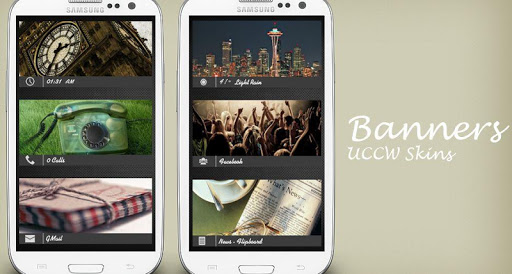
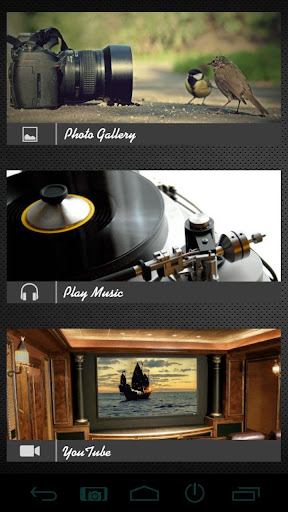
Screen full of tiny button like icons is sooo passe. Jazz up your screen with wide app launcher banners.
== FEATURES ==
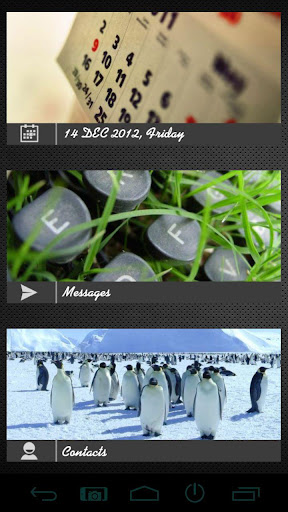
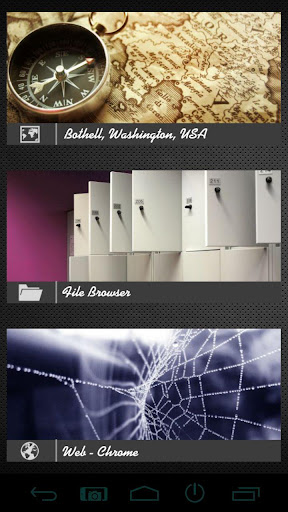
This is an UCCW widget skin pack that contains 15 banner skins in total; every skin working like an icon to launch one app each. Pick the ones you want and arrange them on your homescreen/lockscreen anyway you want.
== INSTRUCTIONS ==
To use this skin, you have to install, apply and optionally edit/assign hotspots to the skin.
Install -
* After downloading the skin app from play store, launch it.
* Tap "Install Skin" button in the app.
* Tap "Ok" when it asks you whether you want to replace app. This step is replacing the skin installer with the actual skin. OR
* If you are using a KitKat device, it'll ask whether you want to update the existing app.
* Tap "Install". When that finishes, tap "Done". Skin is now installed.
Apply -
* You must have latest version of Ultimate custom widget (UCCW) installed. http://goo.gl/eDQjG
* Place a UCCW widget of 5x2 size on the homescreen. You can do so by dragging the widget from app drawer or by long pressing homescreen to pull up widget menu.
* This will open the skins list. Skins installed from play store will show up ONLY HERE.
* Tap on the skin you want to apply and it'll be applied to the widget.
* Repeat the step to place any number of widgets.
* Recommendation - Use Apex or Nova launcher. Grid size 8x5. Horizontal margin = medium, Vertical margin = large. Dock and statusbar hidden. Navbar stock size.
Edit -
* After applying the skin as mentioned above, launch UCCW app itself. Tap Menu, tap "hotspot mode" and tap 'OFF'. UCCW will exit.
* Now tap anywhere on the uccw widget. It'll open in uccw edit window.
* Scroll through the components in the bottom half of the screen. Assign apps to hotspots in this window. This IS a MUST.
* You can change color, format etc too (optional) in this window.
* When done, no need to save. That won't work. Simply tap Menu, tap "hotspot mode" and tap 'ON'. UCCW will exit. Your changes will now be applied to the widget.
== TIPS / TROUBLESHOOT ==
* If the "Install" step fails; go to Android settings > Security and make sure "Unknown sources" is enabled. Reason explained here - http://wizardworkapps.blogspot.com/2013/12/ultimate-custom-widgets-uccw-tutorial.html
* To change temperature unit between Celsius and Fahrenheit -> Launch UCCW app itself. Tap Menu, tap settings. Here, if "Celsius" is marked, temperature will display in Celsius. If unmarked, Fahrenheit.
* If weather info is not displayed/updated, Launch UCCW app itself. Tap Menu, tap settings, tap location. Make sure "Auto location" is checked and that the third row is correctly showing your location.
* You can also tap Menu, tap settings, tap 'weather provider' and change the selected provider.
Mail me if you have ANY issues.