Memo Cats and Dogs
tc.engsoft.memocatsndogs
View detailed information for Memo Cats and Dogs — ratings, download counts, screenshots, pricing and developer details. See integrated SDKs and related technical data.
- No items.
Screenshots



Description
[Features]
- More than 440 beautiful background images of different styles
- You can stick cute cat / dog on the memo widget
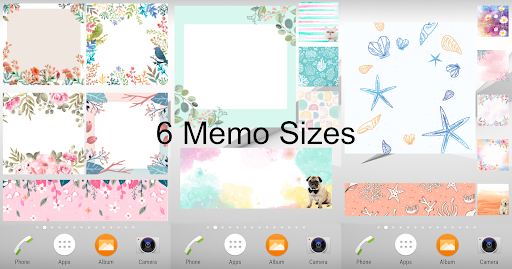
- 6 memo sizes
- 4 kinds of edge designs
- Different font sizes and colors
- Center alignment function
- Multiple notes can be stuck on the home screen
- Organize notes by color and tag
- Search function
- Password protection
- 1 tap to share your notes
- Write notes with your voice without typing (of course, you can input by typing)
- Interface language: English, French, Traditional Chinese, Simplified Chinese, Japanese, Korean
[How to add this Sticky Notes widget onto your home screen]
Method 1 (if you want to put an existing memo onto the home screen of your device)
1. Tab and hold any empty space on a home screen.
2. Tab "Widgets".
3. Tab and hold the widget "MemoCatsDogs". Slide the widget to a home screen, then lift your finger.
4. All saved memos will appear.
5. Tab the memo that you want it to appear on the home screen of your device. Then, that memo will appear on the home screen of your device.
Method 2 (if you want to write a new memo and put it onto the home screen of your device)
1. Tab and hold any empty space on a home screen.
2. Tab "Widgets".
3. Tab and hold the widget "MemoCatsDogs". Slide the widget to a home screen, then lift your finger.
4. Tab "Add New Note".
5. Tab "New Checklist" or "New Text".
6. Input the content.
7. Tab "<" button at the top left corner. Then the memo that you have just created will appear on the home screen of your device.
You can tab the memos on the home screen of your device, or tab the app icon, to access the memos.
- The display of memo may differ among devices.
- Not compatible with some Oppo phone models.
Some graphics are designed by Freepik (www.freepik.com).