Floating Calculator
pnapp.pncalc.full
View detailed information for Floating Calculator — ratings, download counts, screenshots, pricing and developer details. See integrated SDKs and related technical data.
- No items.
Screenshots

Description
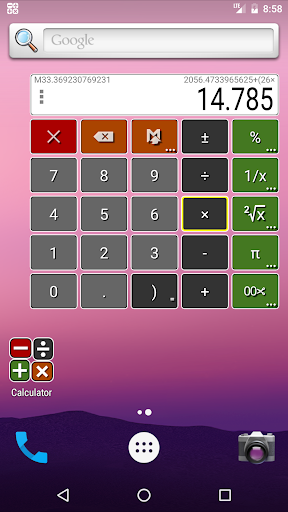
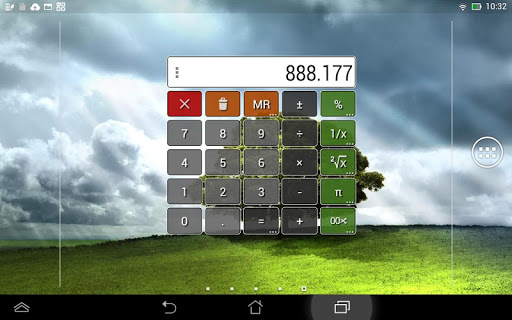
The calculator appears in front of any application running on your device. You can interact with any contents behind it, move it into any place on the screen or hide the calculator's keypad.
Features
• Simple and familiar interface of desktop calculator
• Memory functions (MS, MR, MC, M+, M-)
• Percentages
• Parentheses
• Copy to clipboard
• Paste, paste one at choice
• Mathematical functions (trigonometrical: sin, cos, tan, arcsin, arccos, arctan; hyperbolic: sinh, cosh, tanh; exponential: square, cube, x powered y, exponent, power of ten, square root, cube root, x root y, natural logarithm, common logarithm, 1 over x; other: factorial, round half from zero, round down, π)
• Five user defined buttons
• History of calculations with up to 50 items, ability to hold and restore items
• Share the results of calculations with your friends or coworkers
Usage tips
• Drag the display to move the calculator to any location on the screen
• Click the display to hide or show the keypad
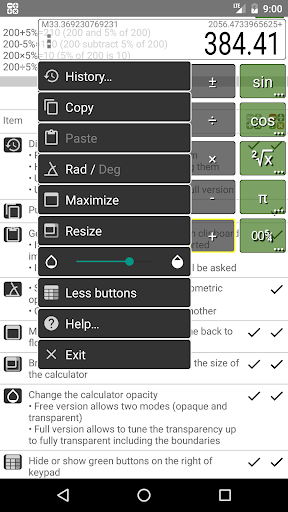
• Use menu button on the display's left side for additional functions (make the calculator fullscreen and transparent, set its size, hide green buttons, switch haptics)
• Memory button changes its behavior depending on context, but all memory functions are available by long press the button
• Functions of parentheses are under an Equals button. Hold it down to reach parentheses
• Backspace and clear functions are switched automatically. Hold down the backspace button to clear the display at any time
• Close button "minimizes" calculator into the notification area, so you can launch it again from within another application. Hold it down or use the menu Exit to close calculator without that notification
• Click on calculator's icon while it is on the screen and calculator will be "minimized" into the notification