青空司書
jp.gr.java_conf.shogo.aozora
View detailed information for 青空司書 — ratings, download counts, screenshots, pricing and developer details. See integrated SDKs and related technical data.
Screenshots

Description
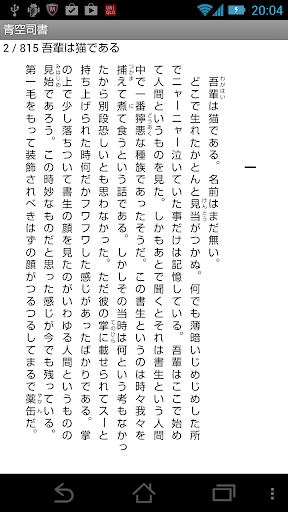
Aozora Librarian is an Aozora Bunko reader/downloader. You can download works from Aozora Bunko and read them in vertical format. You can read text files other than Aozora Bunko and use it as a text reader. It also supports text-to-speech (TTS). It also supports voice recognition. Ads can be hidden.
【Features】
● You can freely set font size, font spacing, background color, font color, etc.
● You can easily search Aozora Bunko/text files from a list.
● Abundant functions such as reading aloud, voice recognition, dictionary linkage, etc.
【function】
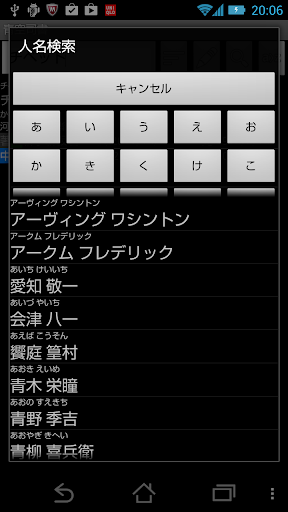
□Search for works published in Aozora Bunko (title of work, name of person, publication date, year of first edition, etc.)
□Download works published in Aozora Bunko
□Random selection
□Text file/HTML file registration/search
□Management of reading status (last opened page, unread, read)
□Data backup/restore
□Vertical display
□Line start/line end/division prohibition processing (catch-up/push-out)
□Automatic conversion of external characters
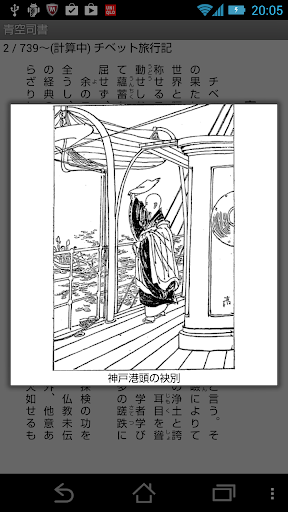
□Aozora Bunko notes and illustrations available
□Move specified page
□Voice reading supported
□Speech recognition compatible
□Search from EPWING (uncompressed/ebzip) format dictionary
□Select/Copy/Share/Quote Copy/Share strings in the work
□Web search cooperation
□Add/delete/list display bookmarks/memos
□List display of headings
□String search within the work
□Enlarged display of text and illustrations
□ Old font ⇒ New font conversion display
□Change vertical screen font
□Change the vertical screen layout (font size, letter spacing, margins, screen orientation)
□Vertical screen background image settings
□Download/update the list of works published in Aozora Bunko
[How to use]
Work selection screen
・Search: Tap the input field on the top left and enter part of the work name or author name → magnifying glass button on the keyboard
・Read: Tap the work → Tap Download and read
・I want to do more: Tap the button on the top right → Instructions
Vertical writing screen
・Next page: Flick to the right (flicking motion)
・Display the menu: Flick up (flicking motion)
・I want to do more: Flick up (flicking motion) → Help