Clean board
jp.co.plus.mx_03
View detailed information for Clean board — ratings, download counts, screenshots, pricing and developer details. See integrated SDKs and related technical data.

Screenshots
Description
This App enables easy scanning and creation of enhanced data of the writings and drawings on our Ink-free, Dust-free Next Generation CleanBoard that is also Eco-Friendly and Clean.
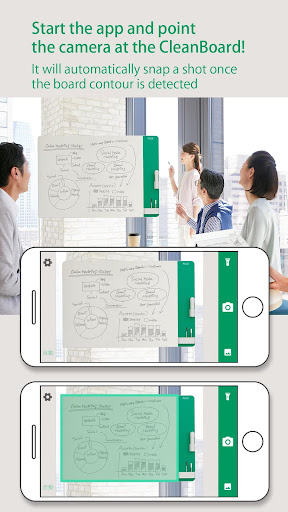
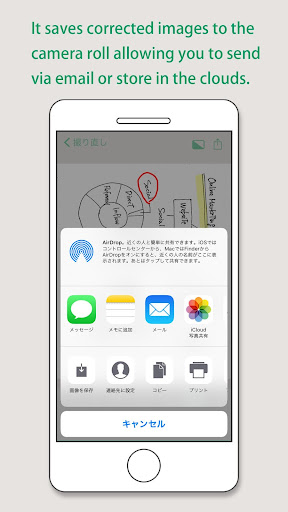
Start this App after installation to shoot the CleanBoard surface (where writing exists). This action will enable the app to automatically detect the contour of the writing surface and creates an enhanced digital data image after corrections such as keystone correction (data format is your choice of JPEG or PDF). You can easily share or organize the data saved in the camera roll and send via email or store in the cloud.
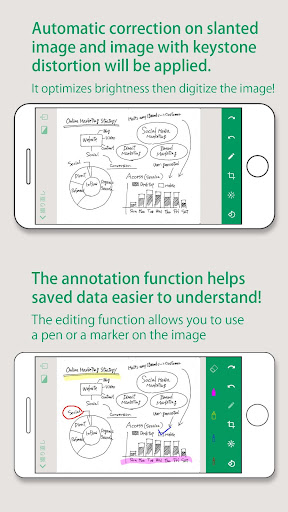
You can edit the saved images with ease, using functions such as brightness, contrast, trimming and rotation.
To use this App, PLUS CleanBoard is necessary. For details, please check our web page:https://www.plus-america.com/pages/meetingtools
(Main Functions)
1. Shooting
When the written surface of CleanBoard is within the shooting range, Clean board automatically recognizes the written area and snaps the image. The App corrects the tilt and keystone to create an optimized image.
2. Brightness and Contrast Adjustment
Brightness and Contrast Adjustment can be applied to the saved images.
3. Trimming
Saved images can be trimmed.
4. Annotation Tools
Saved images can be annotated with a Pen or a Marker tool.
5. Saving image format
Save images in the format of your choice of JPEG or PDF.
【Other functions】
・Shooting Mode Setting(Automatic/Manual selection)
・Rotation function
・Help
【How to use App】
1. Star the App
2. Place the written surface of CleanBoard within the shooting range. The written area is automatically recognized and shooting starts.
3. Once the corrected image appears, brightness, contrast adjustment and saving functions are possible.
※Reflections of lighting in the image may affect the saved image. Avoid reflections that appear on the written surface when shooting the picture.