MTG Sync
jp.co.plus.PashaboMTGSync
View detailed information for MTG Sync — ratings, download counts, screenshots, pricing and developer details. See integrated SDKs and related technical data.

Screenshots


Description
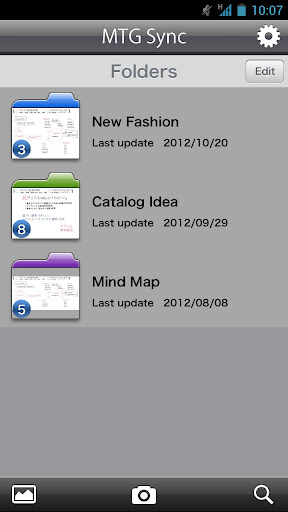
This App makes it easy to organize the whiteboard writings by optimizing the snapshot picture using unique frame recognition technology such as key stone correction. The saved data can be organized by folders, sent by e-mail, sent to Evernote, Dropbox and can be saved to Camera Roll.
*To use the feature of this App, Smartphone ready whiteboard PLUS “MTG Sync” is required. For details please check our website: http://www.plus-vision.com
Main features
1. Shooting (save whiteboard writing)
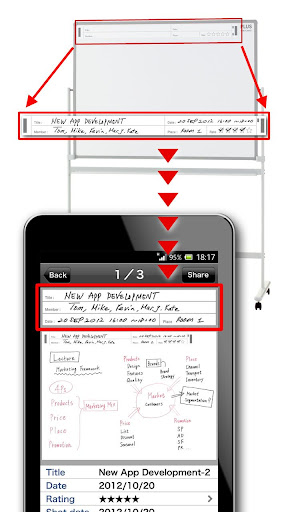
Camera feature of this App enables to save the optimized whiteboard image after picture correction.
2. The bundled template sheet will enable you to cut out the “title”, “date”, “member” and “place” on the App to show on the screen. By checking the ☆ marks, App will recognize the rating and organize the data according to the ratings.
3. Detailed display of the file
Saved data can be displayed by either enlarging it or shrinking it using pinch operation.
The title, date, and ★rating can be edited , too.
(Other Features)
*File list display feature
*Sending as an email attachment, sending to Evernote, Dropbox.
*Folder management of the saved data. (Folder name and color setting is possible)
*Saving the data to the Camera Roll
*Picture correction on the image from Camera Roll
*File search function. (Search by rating, shot date, title, etc.)
*2 picture correction modes. (Whiteboard mode, Photo mode)
*Image stabilizer function. (Shoot after stabilized)
How to shoot
1. Move to Camera mode using “Camera” button.
2. Tap the shoot button after confirming the whiteboard well within the display.
*Keystone correction may fail if PLUS logo is not recognized.
*Recommending shooting distance is max. 2m, angle is max. 45 degrees left/right, but it depends on the shooting condition. If the PLUS logo is not properly recognized, shoot it from the front in the nearest distance.
・Evernote and Evernote logos are the trademarks or registered trademarks of U.S.Evernote Corporation
・Dropbox and Dropbox logos are the trademarks of registered trademarks of US Dropbox, Inc.