WORDBOX Essential
jp.co.biseisha.wbe
View detailed information for WORDBOX Essential — ratings, download counts, screenshots, pricing and developer details. See integrated SDKs and related technical data.

Screenshots

Description
Packed with functions to learn English words effectively, such as word tests, word cards, and listening learning.
You can improve your vocabulary by using the clearance time.
[What you can do with this app]
◆ Function 1 ◆ Word test
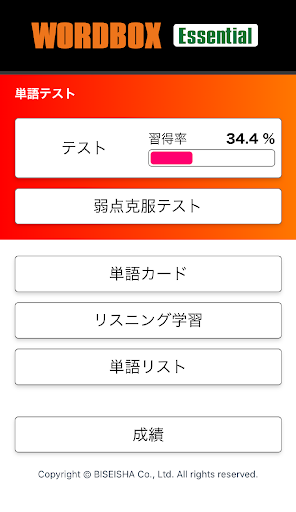
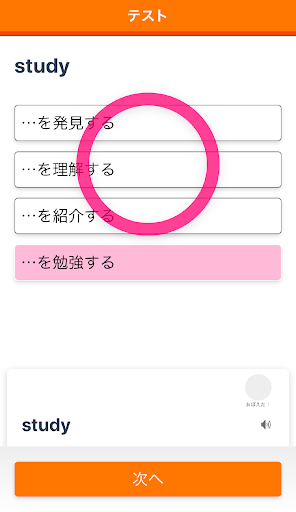
The word test has two modes, "test" and "weakness test".
In the "Vulnerability Overcoming Test", you can intensively learn the wrong word in the "Test".
Both modes support three types of questions: "Japanese → English", "English → Japanese", and "Example 4 choice" which asks English words in example sentences.
Ideal for preparing word tests in class.
◆ Function 2 ◆ Word card
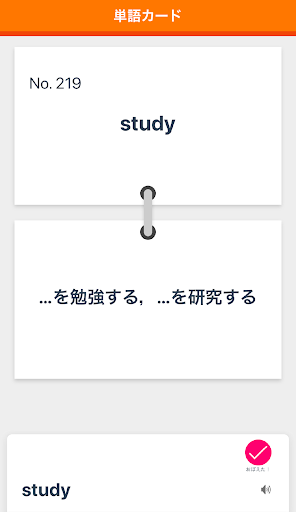
By using the "word card" function, you can learn English words recorded in the vocabulary from both "Japanese → English" and "English → Japanese".
As with the word test, you can freely specify the range of questions, the number of questions, and the order of questions.
◆ Function 3 ◆ Listening learning
In "Listening Learning", you can learn English words included in the vocabulary from your ears.
You can select from five playback formats: English → Japanese, Japanese → English, Phrase, Example sentence, and headword → Phrase → Example sentence. In addition, you can specify the playback range and playback order.
You can check the details of the headword by tapping "Confirm" at the top right of the listening screen.
◆ Function 4 ◆ Word list
The "word list" displays a list of all headwords included in the vocabulary. Tap a headword to see details and audio.
◆ Function 5 ◆ Results
In "Grades", you can visually check the grades for each question format in a graph.