PDF Merger
ebusky.pdfmerger
View detailed information for PDF Merger — ratings, download counts, screenshots, pricing and developer details. See integrated SDKs and related technical data.
- No items.

Screenshots


Description
PDF Merger is a powerful and easy-to-use app that lets you merge multiple PDF files into one seamless document. Whether you need to combine PDFs for work, school, or personal use, this app makes the process simple and efficient. With added features like reading and ordering PDF files before merging, PDF Merger is the perfect tool for managing your documents.
UNIQUE FEATURES:
- Merge PDF Files Effortlessly: Combine multiple PDFs into one in just a few taps.
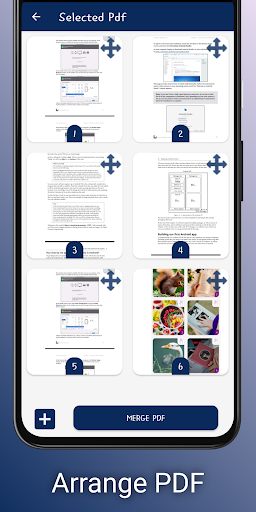
- Reorder Files Before Merging: Arrange PDF files in the exact order you want.
- Read PDFs Before Merging: Open and review files to ensure accuracy.
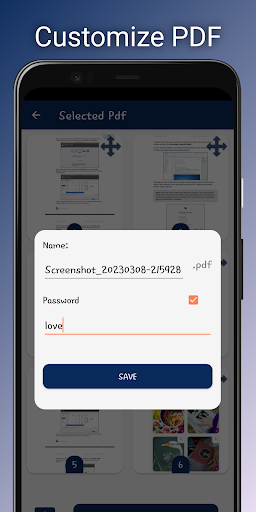
- Password-Protect Merged PDFs: Secure your merged documents with a password.
- User-Friendly Interface: Designed for simplicity, making it accessible for all users.
Key Features:
1. Merge Multiple PDF Files: Select as many PDFs as you need and merge them into one file effortlessly.
2. Order Files as You Like: Rearrange files in your preferred order before merging for a fully customized output.
3. Read PDF Files: Preview your PDFs within the app to verify content before merging.
4. Password Protection: Add a password to your merged PDF for enhanced privacy and security.
5. Simple and Easy to Use: Enjoy a clean, intuitive interface for quick and hassle-free PDF management.
How to Use PDF Merger:
1. Open the app
2. Choose the PDF files you want to merge.
3. Use the reorder option to arrange the files in your desired sequence.
4. Preview the files if needed, then tap Merge.
5. Optionally, set a password for your merged PDF.
6. Save the merged file, and it’s ready to share or use.