ぷよっと解析くん Lite版
com.sunmo.puyottoanlyzerlite
View detailed information for ぷよっと解析くん Lite版 — ratings, download counts, screenshots, pricing and developer details. See integrated SDKs and related technical data.

Screenshots


Description
*Lite version for Android 7 and below.
*The official version is a reduced function version for those who are forced to end immediately after starting the application.
Specify the type of puyo, the color of the puyo you want to prioritize, and the number of traces,
By pressing the analysis button, the analysis result will be displayed on the screen of a certain puzzle game.
Overlay display.
Only the first time, settings are required.
1) Start the application and press "Start".
2) A certain puzzle game will start, so proceed to the quest.
*It is okay if the timing is something other than chance mode, which can be erased.
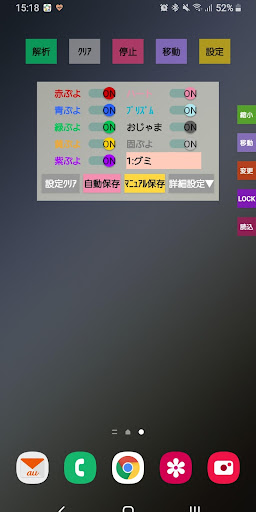
3) Press the "Settings" button and select the Puyo type (eg "Gummy").
4) Press the "Save settings" button on the setting screen.
Please check the color of Puyo displayed on the screen.
1) Start the application and press "Start".
2) A certain puzzle game will start, so proceed to the quest.
3) Make sure that the contents of the setting screen are correct.
4) Click "Analysis".
When you trace, the positions of Puyo that can be chained are displayed.
1) [Start] button
Launch a certain puzzle game and overlay Puyoto-kun.
2) [End] button
Exit this tool.
1) [Analysis] button
Acquires the screen status and overlays the positions that can be chained based on the information set on the setting screen.
* The color recognized by long-pressing and the analysis result are displayed at the same time.
2) [Clear] button
Clear the analysis result.
*Press and hold to display the simple mode.
3) [Stop] button
Exit the overlay and display the boot menu.
4) [Settings] button
Displays the setting screen of this tool.
Press it again to hide.
4-1) [Puyo color]
Turn on the priority Puyo color.
The following are currently supported.
"Red, blue, green, yellow, purple, heart, prism, Ojama, Kopuyo"
*It is effective only when "Erase number priority" and "Damage priority".
4-2) [Puyo type]
Please select the type of Puyo currently selected from the following.
The following are currently supported.
・Gummy
・Aqua
・Fever
・Classic
・Irogae
・ Pastel
・Moro Alien
·Cube
4-3) [Clear settings]
Clear the changed settings from the setting screen.
4-4) [Auto save]
By pressing the button, the state of the setting screen is saved and taken over at the next startup.
4-5) [Manual save]
By pressing the button, a screen where you can adjust the position and size of the Puyo area is displayed.
Use this when "Auto Save" does not correctly recognize the Puyo area.
You can adjust the position by moving while touching the upper half.
You can adjust the size by touching and moving the lower half.
Fine adjustment is possible with the arrows of ↕↔.
After the adjustment is completed, press the “OK” button once to hide the adjustment screen.
Then, click the "Save" button to save the Puyo area information.
4-6) [Detailed settings/Close]
Press the button to show/hide the detailed settings (the following functions) on the setting screen.
4-7) [Priority]
Chain number priority・・・Ignoring the disappearance, the one with a large number of chains is extracted as a result.
Priority on the number of deletions... Ignoring the disappearance and extracting the ones with the most deletions as a result.
Damage priority・・・Damage is calculated considering the disappearance and the result with much damage is extracted.
All erase priority... Even if you select the above priority item, all erase will be given the highest priority. ‥
:
4-8) [Maximum number of trace erasers]
Please specify the number you want to erase.
It supports 1 to 18 pieces, but if the number is large, it will take time to analyze.
*Depending on the terminal performance, it may not work properly.
4-9) [Chain coefficient (color/magnification)]
It becomes effective when damage is prioritized.
You can reflect the chain multiplier in the skill of a specific character in the damage calculation.
4-10) [Simultaneous coefficient]
It becomes effective when damage is prioritized.
It is possible to reflect the simultaneous erasing ratio in the skill of a specific character in the damage calculation.
4-11) [Analysis level]
The accuracy (number of search patterns) when searching.
The higher the level, the better results you may get, but the more search patterns there are, the longer the process will take.
However, even if the level is low, the same result may occur, so please use it according to your preference.
5) [Move] button
You can drag the screen that is displayed as an overlay.
The position will be reset when you exit the app.
6) [Reduce/Display] button
It is displayed small on the right edge slightly above the center of the screen.
Click the "Reduce" button to hide the overlayed buttons.
Click the "Display" button to overlay the various buttons.
7) [LOCK/UNLOCK] button
If there is a Puyo that you do not want to erase, such as Chance Puyo, you can lock it so that it will not be erased.
Touch Puyo to lock, press again to unlock.
Pressing the clear button will clear all locked Puyo.
8) [Change] button
If you find that Puyo is erroneously recognized, you can change the color recognized by Puyo by selecting the color you want to change and touching the target Puyo.
Press the clear button to clear all the changed Puyo colors.
9) [Read] button
Up to 6 setting patterns can be saved and can be switched by pressing the button.
[How to set]
① Click the "Read" button.
② Select any button from preset 1~6.
* Save the settings to the selected button.
③ Set from the setting screen.
④ Save the settings with the "Auto save" or "Manual save" button.
[How to use]
① Click the "Read" button.
② Select the button of the setting you want to switch from preset 1 to 6.
If you have a bug report such as the app being terminated forcibly or not being able to recognize Puyo properly, it would be very helpful if you could contact us with screenshots by email. We would appreciate your cooperation.