한자단어변환
com.phasis.android.notepad
View detailed information for 한자단어변환 — ratings, download counts, screenshots, pricing and developer details. See integrated SDKs and related technical data.
- No items.

Screenshots


Description
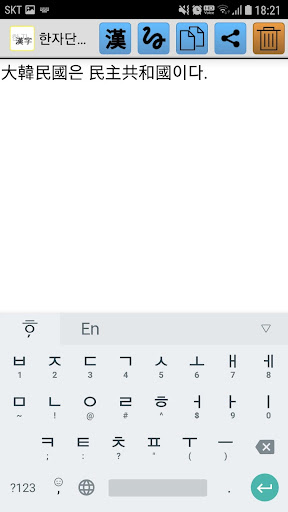
We have made it easy to input Kanji and Kanji words.
Hanja Conversion Supports Hanja word conversion.
You can input Korean characters and input Chinese characters corresponding to notes. You can also enter special symbols by using the alphabetic characters such as ㄲㄴㄴㄸ ㄸ ㅃ ㅃ ㅊ ㅊ ㅊ ㅌ.
You can enter Chinese characters and convert them to Chinese characters. You can use the copy function to paste text you have typed into other apps, like text messaging or Mail.
Hanja supports 27,484 Kanji based on Unicode 3.0. Hanja words support about 40,000 words, including dead words.
[How to use]
When you start the application, a screen for entering a sentence appears.
Type the Hangul characters or words you want to change to Chinese characters.
Press the Hanja button at the top.
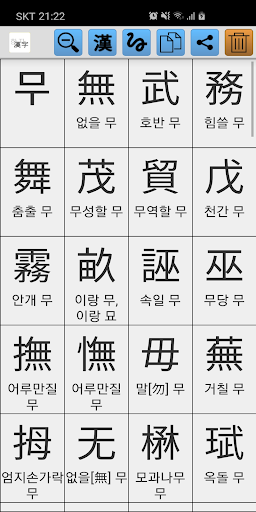
If the Hangul character in front of the cursor is one character, a list of Kanji characters is displayed. If there are two or more characters, a list of words is displayed.
Select the desired kanji from the list displayed on the screen.
The sentence will be saved automatically when you exit the application.
Press the Hanja button on the right side of the kanji to display the kanji's horn.
If you press the handwriting button and draw a Chinese character, you can search and input the Chinese character.
Pressing the Copy button will save the content in a temporary storage on your mobile device.
After executing the application such as sending mail, sending text, Kakao Talk, etc.,
You can paste it into the input window by selecting Paste from the pop-up menu that appears when you press it for about 2 seconds.
Press the Share button to send your input to another app.