Remote PC
com.kv3c273.remote_pc_free
View detailed information for Remote PC — ratings, download counts, screenshots, pricing and developer details. See integrated SDKs and related technical data.
- No items.

Screenshots
Description
Remote PC (Remote PC control) - Turn your phone or tablet into a convenient wireless remote control for your computer. It not only features wireless mouse and keyboard functionality but also provides a variety of specialized control panels, such as presentation mode with simulated laser pointer, media remote, hotkey panel, and gamepad.
Possibility to connect via Wi-Fi or Bluetooth.
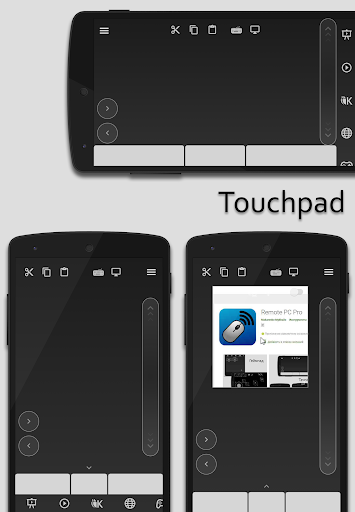
➢ Mouse (Touchpad)
• Fully simulated mouse functionality
• Adding a widget displaying the computer screen
• Left-handed mode
➢ Keyboard
• Input from a soft keyboard directly on the computer
• Remote voice input capability if the soft keyboard supports voice recognition
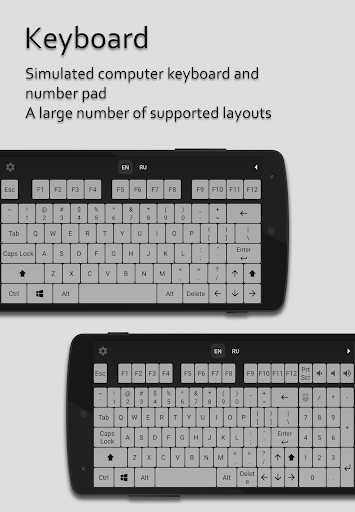
➢ Simulation
• Simulation of computer keyboard and numeric keyboard
• 15+ supported layouts
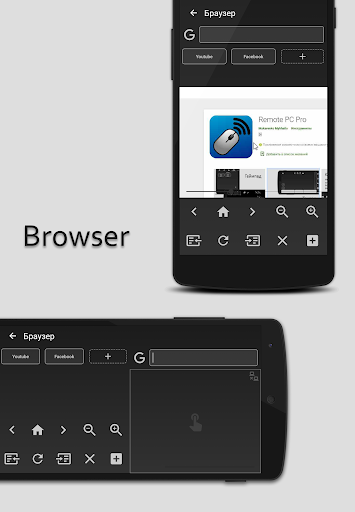
➢ Browser Control
• URL navigation
• Search across various search engines
• Tab creation
➢ Presentation Remote
• Slide control, start and stop presentations
• Simulation of a laser pointer on the computer screen
➢ Hotkey Panel
Create any key combinations to emulate simultaneous pressing of multiple PC keyboard buttons
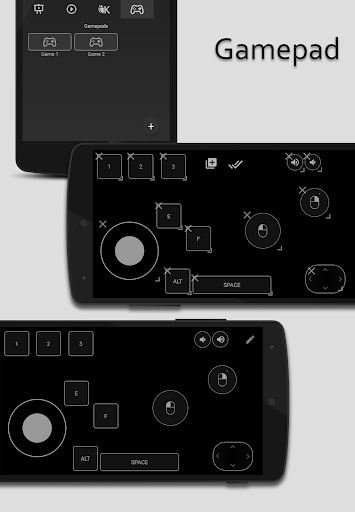
➢ Gamepad
Create a separate gamepad for all your games.
➢ Task Manager
Ability to terminate processes on the PC
➢ Power Management
• Shutdown
• Restart
• Hibernate
• Log off
➢ Compatible with Windows, Linux
Installation:
• Download and install the server:
from the Menu → Downloads app;
Google Drive https://drive.google.com/open?id=1KCHyFqQnBL30F0qaW-Pohb-IwdlOMkS8
• Ensure your phone and computer are connected to the same Wi-Fi network.
• When connecting via Bluetooth, prepare your computer - turn on the wireless adapter and pair the PC via Bluetooth.
Make sure the device (phone) is added to the PC (Settings->Devices->Bluetooth), and also on the phone, the computer should be listed as a paired device.
• Launch the application to connect to the computer.