FS Notebook
com.josharos.fsnotebook
View detailed information for FS Notebook — ratings, download counts, screenshots, pricing and developer details. See integrated SDKs and related technical data.
- No items.

Screenshots


Description
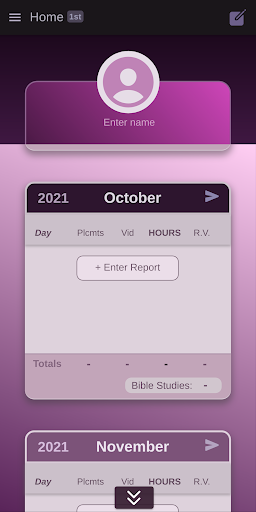
FS Notebook (or field service notebook) is a simplified app for tracking personal field service/ministry activities and notes. It is designed to provide an intuitive, simple and pleasant user experience. It is expected that this app will prove helpful as a simple complement to paper notes, since in many cases a mobile device is likely more reachable. This 'unofficial' app is free, and does not display ads.
Features at a Glance
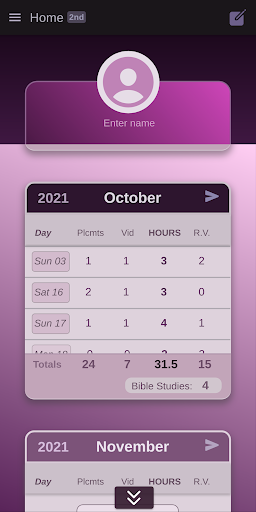
- Enter field service report for each day of the month.
- View report totals for each month.
- View and update Bible studies and comments for each month.
- View trend of hours, return visits and Bible studies over 12 months.
- Share/send report totals including comments.
- Enter field service notes such as study progress, new interests, etc.
- Search through field service notes.
- Share field service notes.
- Enter reports data for a second user (such as spouse).
Tips
- Report items in a month card are scrollable. Sliding each item to the left reveals a button.
- The send or share button on the month cards can be used to share/send report totals and comments for each month.
- When sharing report with send button, the user name entered will be used.
- Clicking on a month opens a chart (of 12 months) while indicating the selected month.
- Clicking or scrubbing over the chart (of 12 months) will display the figure corresponding to each month.
- On the chart (of 12 months), the upward or downward direction of the curve helps to visualize relative progress on hours, return visits and Bible studies.
- Report time less than 1hr can be entered as fractions in decimal (e.g. 15min is a quarter of an hour which equals 0.25hr).
- A report can be saved only when 'hours' is greater than zero.
- In the notes page, you can enter text as well as various emojis. You can also search using emojis as search criteria.
- Since emojis are searchable, they can be selectively added to make notes more organized and findable.
- Delete a note from notes list by sliding each item to the left to reveal a delete button.
This offline app does not provide extra backup or data encryption at this time. However, a user may consider a system wide backup as provided by device (if necessary).
See full disclaimer on site.