Arab Bank
com.integral.arabbank
View detailed information for Arab Bank — ratings, download counts, screenshots, pricing and developer details. See integrated SDKs and related technical data.
Total installs
917(917)
Rating
unknown
Released
September 1, 2021
Last updated
January 1, 1970
Category
Finance
Developer
Powered by Integral Development Corp.
Developer details
Name
Powered by Integral Development Corp.
E-mail
Website
unknown
Country
unknown
Address
unknown
Android SDKs
- No items.

Screenshots

Description
Existing customers of Arab Bank Switzerland can use their credentials to log into Arab Bank Foreign Exchange to view currency and precious metals rates, execute trades and monitor orders. Always stay connected – from home, in meetings or on the go.
The Android application’s home screen is divided into three sections:
1. FX Board
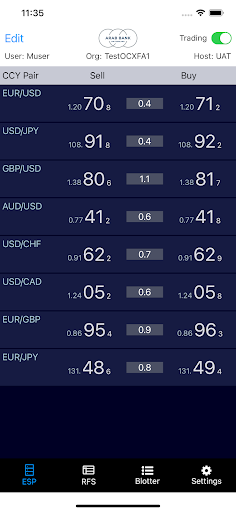
The FX Board contains a rate feed of user-defined currency pairs. The information displayed for each currency pair includes bid/offer rate, spread, intraday change (displayed in pips or percentage), and last updated time. Tapping on a bid or offer price opens the order entry panel to allow the user to place an order.
2. Full Book
The Full Book aggregated view displays prices from up to 5 liquidity providers and the respective liquidity available. You’ll see price at size and all available liquidity at that price. It also displays the spread for each currency pair, the intraday change, and the last updated time. Tapping on the top of the book bid or offer price opens the order entry panel to allow the user to place an order.
3. Order Entry Panel
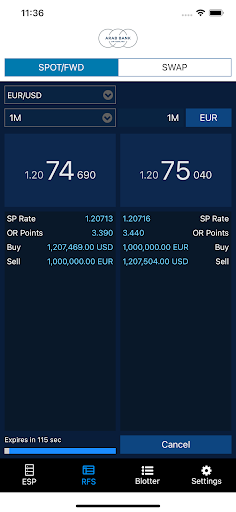
The order entry panel is opened by tapping a bid or offer price. You can then choose the order type and select buy or sell. Depending on the order type that you choose, the following order attributes become active:
•The “orders list” displays Order ID, Status, Side, CCY Pair, Dealt (currency), Order Amount, and Fill Amount. In portrait mode, the following columns are added: Type, Time-in-Force, Order Rate, and Fill Rate. Order Details can be reviewed by simply tapping on an order.
•Market: amount, range, time in force, GTT time
•Limit: amount, limit price, time in force
•Stop: amount, stop price, time in force
Simple and easy to use:
You can add and delete currency pairs, define a maximum order size, or disable trading temporarily altogether. Currency pairs can also be re-arranged in the order you prefer.