Catch! — Android-PC File Trans
com.discsoft.catchapp
View detailed information for Catch! — Android-PC File Trans — ratings, download counts, screenshots, pricing and developer details. See integrated SDKs and related technical data.
Total installs
53.8K(53,884)
Rating
4.4(40 reviews)
Released
February 28, 2017
Last updated
January 1, 1970
Category
Tools
Developer
SIA AVB Disc Soft
Developer details
Name
SIA AVB Disc Soft
E-mail
catch@daemon-tools.cc
Website
unknown
Country
Latvia
Address
unknown
Android SDKs
- No items.

Screenshots

Description
Transfer files from Android to PC and other mobile devices via local Wi-Fi network
Let’s make your desktop and mobile devices closer! Install DAEMON Tools Ultra or Lite to to transfer files from Android to PC with the lightning speed. Back up Android files, transfer photos from Android to PC, browse the content of your phone and catch all types of files from any device in the local network.
Why to use Catch! for the file transfer?
- Lightning speed
- Automated backups
- No mobile network usage
- No limits on the file types
- Mobile device browsing
How to transfer files from Android to PC and back?
- Install DAEMON Tools Ultra or Lite to your PC
- Open Catch! on the Android device
- Ensure that both apps are running in the same network
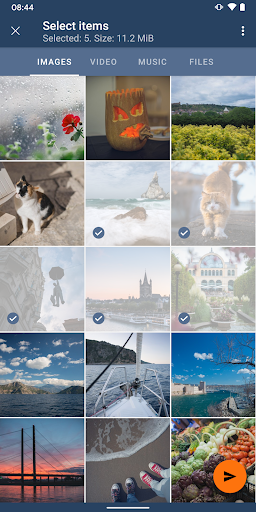
- Choose photos, tracks or files you want to send
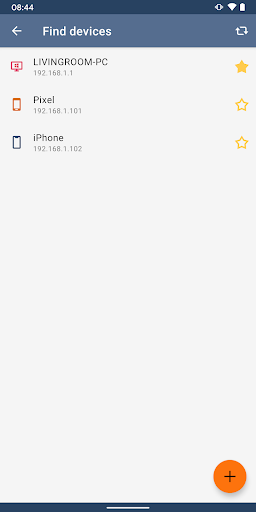
- Choose the PC that will catch them
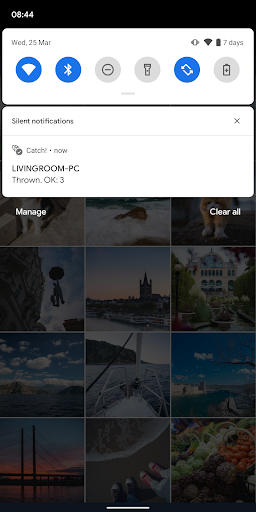
- Wait while we transfer files from Android to PC
- Go to DAEMON Tools to look at the received files :)
How to browse Android files from the PC?
- Open Catch! on the Android device
- Install DAEMON Tools Ultra/Lite to your PC
- Ensure that both apps are in the same network
- Launch Ultra/Lite, you will see your Android on the device panel
- Right-click it and choose Open in Ultra/Lite option
- That’s it! All Android files are shown on your PC
How to back up Android files to PC?
- Install DAEMON Tools Ultra to your PC
- Open Catch! on the Android device
- Ensure that both apps are in the same network
- Choose New Backup Task from Store section in Ultra
- Set Source to Remote device and choose your one
- Adjust backup schedule and settings, click Finish
- That’s it! The task to back up Android to PC is ready