Dairy Milk Manager (VimGir)
com.avimgir
View detailed information for Dairy Milk Manager (VimGir) — ratings, download counts, screenshots, pricing and developer details. See integrated SDKs and related technical data.
Total installs
1.9K(1,929)
Rating
unknown
Released
January 3, 2020
Last updated
April 30, 2025
Category
Finance
Developer
Vijendra Singh Nitharwal
Developer details

Screenshots

Description
Visit website "https://www.dairy.vimgir.co.in" to use VimGir on mobile and computer browser.
1. Login and use in any phone or computer, your data is always safe with us.
2. Add as many number of dairy and rate charts you want.
3. Create or Upload excel rate charts, sample rate chart available in App.
4. Modify rate charts at any moment.
5. Link rate charts to customers.
6. Add collection data with chatting experience.
7. Add advance, debt and cattle feed data.
8. Edit any data easily.
9. Print and Send report on text message, whatsapp and other sharing apps.
10. Export collection data and payment summary as PDF and Excel.
Steps to use app :-
1. Create a new buyer account and login using new account credentials.
2. Go to "Rate Chart" tab and add new dairy. Create new rate charts for buffallo and cow for that new dairy using different rate formats.
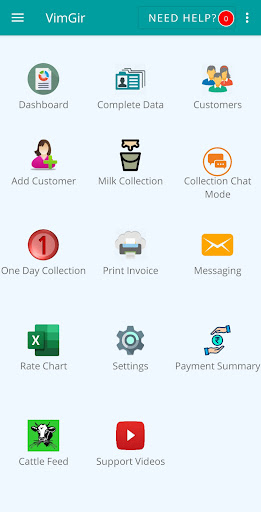
3. Go to "Add Customer" tab and enter customer details, choose messaging and complete data view option, also choose rate charts to link them with this customer.
4. Add milk collection for different customer using "Milk Collection" and "Milk Collection Chat Mode" tabs.
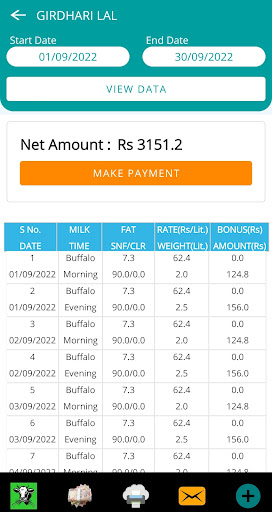
5. Go to "Customers" tab and select a customer for different actions. Click "Open" button to view collection data.
6. Go to "Settings" tab to configure dates and enable milk buy and sell mode.
7. Go to "Complete Data" tab to print complete data of all customers in a single click.