AirTurn Manager
com.airturn.airturnmanager
View detailed information for AirTurn Manager — ratings, download counts, screenshots, pricing and developer details. See integrated SDKs and related technical data.

Screenshots



Description
This is a new version released on April 27, 2020. More devices are supported and Android versions 6-10 are supported. Customer feedback has been incorporated. Contact support if you have any problems.
AirTurn Manager allows you to test your AirTurn's switches, change its output configuration, and update its software.
Supported AirTurn models include:
DUO 200
DIGIT 200
QUAD 200
BT200S-2
BT200S-4
BT200S-6
PED
PEDpro
DIGIT III.
TEST YOUR AirTurn: When you press a pedal/button on your AirTurn it will be highlighted on the image. You can also use your AirTurn to scroll when reading the manual or FAQ.
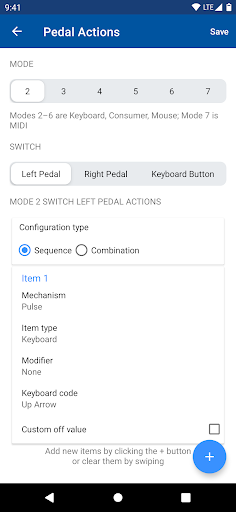
CONFIGURE YOUR AirTurn controller: Configure the keyboard/mouse/MIDI actions when a pedal/button is pressed for each of 7 modes, the repeat rate when you hold down a pedal, and how long before the AirTurn powers off when idle. (Note: MIDI is only in MODE 7)
UPDATE YOUR AirTurn controller: If a software update is available for your AirTurn you will be notified and provided with details of the update. If you choose to go ahead and update the software it will automatically be downloaded from the Internet and transferred to the device.
INSTRUCTIONS:
Pair your AirTurn device with Android phone or tablet:
1. Power on the AirTurn pedal by holding the power button for 2 seconds.
2. Briefly press the MODE button until the red LED turns off. Both LEDs should flash once. This indicates the AirTurn device is now in MODE 1.
3. Open Bluetooth Settings on your Android device, and find the AirTurn by model name in the available devices list. Tap it to pair.
4. Before exiting Bluetooth settings, tap the gear icon next to the paired AirTurn, and turn off “Use as Input Device”.
5. Open AirTurn Manager, select the device model you’re trying to pair, and select your device from the list once it appears.
You can now configure your AirTurn pedal from the Setting menu, accessible via the gear icon in the upper right corner of the preview display.
Select your AirTurn pedal from the configurable models listed. AirTurn Manager will begin scanning for the selected model.
Once connected, you can test switches for operability.
To change device configurations, tap the gear icon in the upper right corner of the preview panel.
Port Configuration allows you to select a MODE to configure, then select a switch to assign actions. (MODE 7 is reserved for MIDI)
All changes are saved automatically.